
This article covers different options for resetting or restoring SteamOS on Steam Deck or other devices. You may need to do this if you can’t boot, want to erase local data on your device, or encounter other problems.
Quick Links
Factory Reset (Erases all local data and reinstalls Steam)
Rollback to a previous operating system (Restores to a previously known working operating system while preserving user data)
Remove User Data from Device (Erases all local data)
Install / Re-image / Repair SteamOS (Erases all data on the device and installs SteamOS)
You may need to do this if you want to install SteamOS on your device, if you already have another operating system installed and want to revert to SteamOS, or if you encounter other problems.
Factory Reset
You can use this feature if you want to erase all local data (including games, etc.) and reinstall Steam/SteamOS.
If your device can successfully boot Steam,
this option is available.
In Steam, press the “Steam” button, go to “Settings,” and then select “System.”
Then scroll down to the Factory Reset option and select the “Factory Reset” button.
Note: The “Reinstall SteamOS” option may require an active internet connection. If system files have been modified, this operation will download the original version and restore it to its unmodified state. If you cannot or do not want an internet connection, you can disable the “Reinstall SteamOS” option or use the “Rollback to Previous Operating System” option to restore to an older version of SteamOS.
Rollback to Previous Operating System
SteamOS can restore to the last known working version of your operating system while retaining user data (such as installed games, save files, etc.). This is very useful if you believe recent modifications to your operating system may have caused the problem, or if you suspect your current operating system data is corrupted and want to retain your user data.
To rollback to a previous operating system, please see the following instructions:
Press and hold the power button for 10 seconds to completely power off the device. We recommend completing these steps while the device is plugged into a power source.
Press and hold the “…” button, then press the power button to power on.
Continue holding the “…” button until you see a menu labeled “SteamOS”.
The restore menu will look something like this:
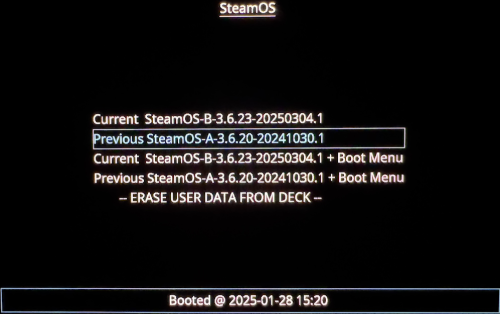
In this menu, you can select the second option from the top, which reads “Previous SteamOS…”
Delete User Data from Device
This option is useful if you want to erase all local user data on your Steam Deck or other SteamOS devices, but don’t want to do so, or if you can’t erase it by restoring factory settings. Accessing this menu requires a specific key press, and the device must be completely powered off.
Press and hold the power button for 10 seconds to completely power off the device. We recommend completing these steps while the device is plugged into a power source.
Press and hold the “…” button, then press the power button to power on.
Continue holding the “…” button until you see the menu labeled “SteamOS”.
The restore menu will look something like this:
In this menu, you can select “Erase User Data from Deck”. This will erase all local user data.
Install / Reinstall / Repair SteamOS
If you want to install SteamOS on your device, have another operating system installed and want to revert to SteamOS, or are experiencing other issues, you can re-image SteamOS onto your device.
Currently, the only devices officially listed as “SteamOS powered” are the Steam Deck and Legion Go S. We are expanding support, and with the latest update to Steam and SteamOS 3.7, compatibility with other AMD-powered PC handhelds has improved.

